 Graphite
Guides / 12 of 13
Write a Long Piece
Word targets with a deadline, Compare in Version History, and a manuscript of chapters.
A book, a thesis or an essay series takes weeks, and lives in many documents. Graphite has three tools for the long haul: a word target with a deadline, Compare in Version History, and Manuscript, which puts a folder’s documents in order as chapters.
Graphite Pro. Targets, Compare and Manuscript are free. Printing a manuscript, and exporting it as a PDF, a Word document or in a Pro style, are part of Graphite Pro, as they are for a single document. See what’s in Pro.
Set a word target
- Open the document, click its title and choose Set Word Target…. It’s in the Command Palette too.
- Under Words, type how long the piece should be. Add a Deadline if you have one; it’s optional.
- Choose Set Target.
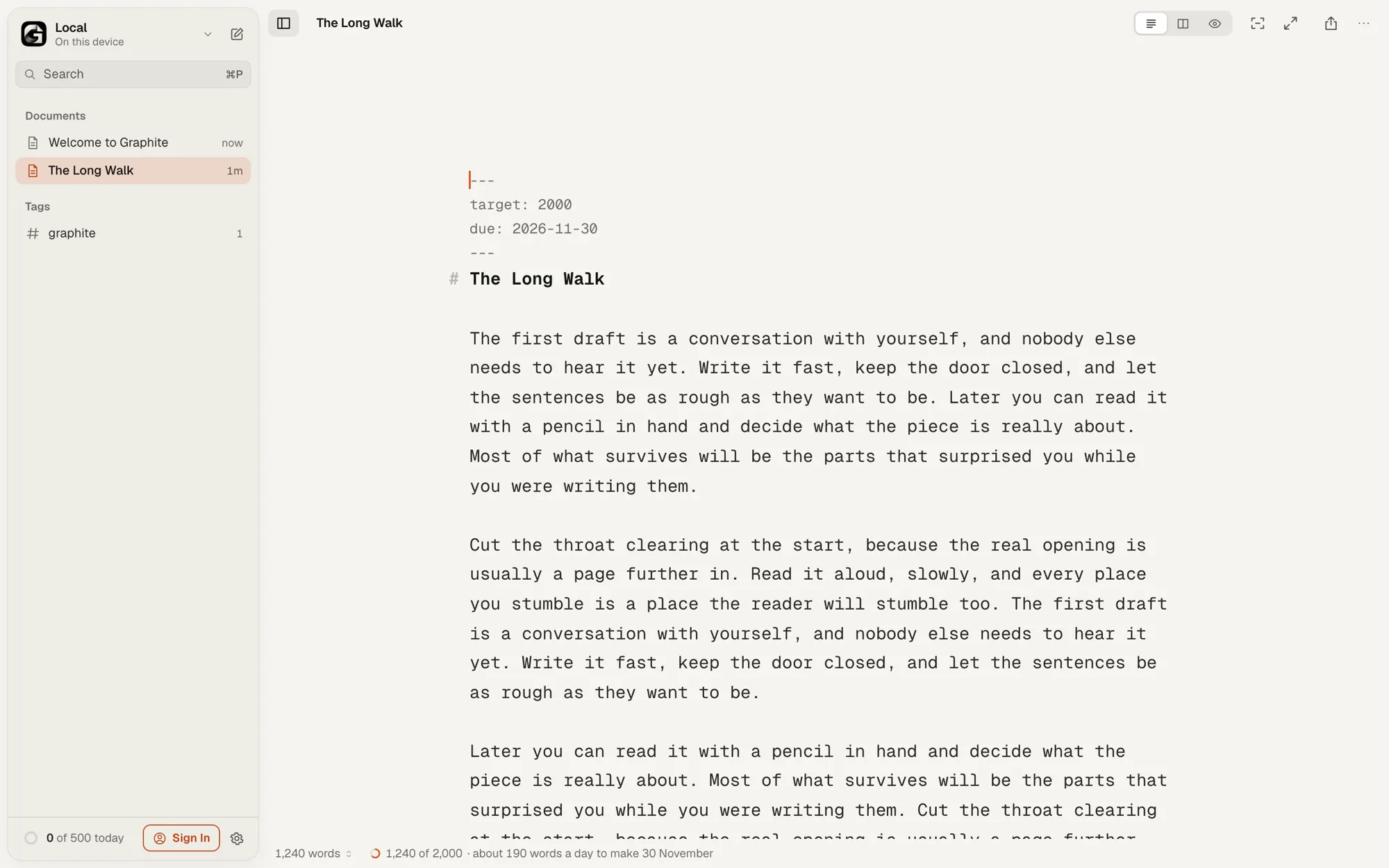
The status bar now shows your progress, such as “1,240 of 2,000”. With a deadline, it also shows the pace to keep, such as “about 190 words a day to make 30 November”, and on the last day, the words still to go today. When you get there it says Target reached. If the deadline goes by first, it says Deadline passed, so you can set a new one.
Click the progress in the status bar to change the target, or choose Remove Target. The Writing Habit sheet has a Word Target section for the open document too.
The same rules as your daily goal apply: words you paste or credit to someone else don’t count.
Where the target is kept
The target is written at the top of the document, as front matter, so it goes wherever the file goes: a folder on your disk, Google Drive, or another Markdown app.
---
target: 2000
due: 2026-11-30
---
You can edit these lines by hand. Front matter isn’t counted as words, and it’s left out of Preview, printing and every export except Markdown.
Compare two versions
- Click the document title and choose Version History….
- Pick a version and choose Compare.
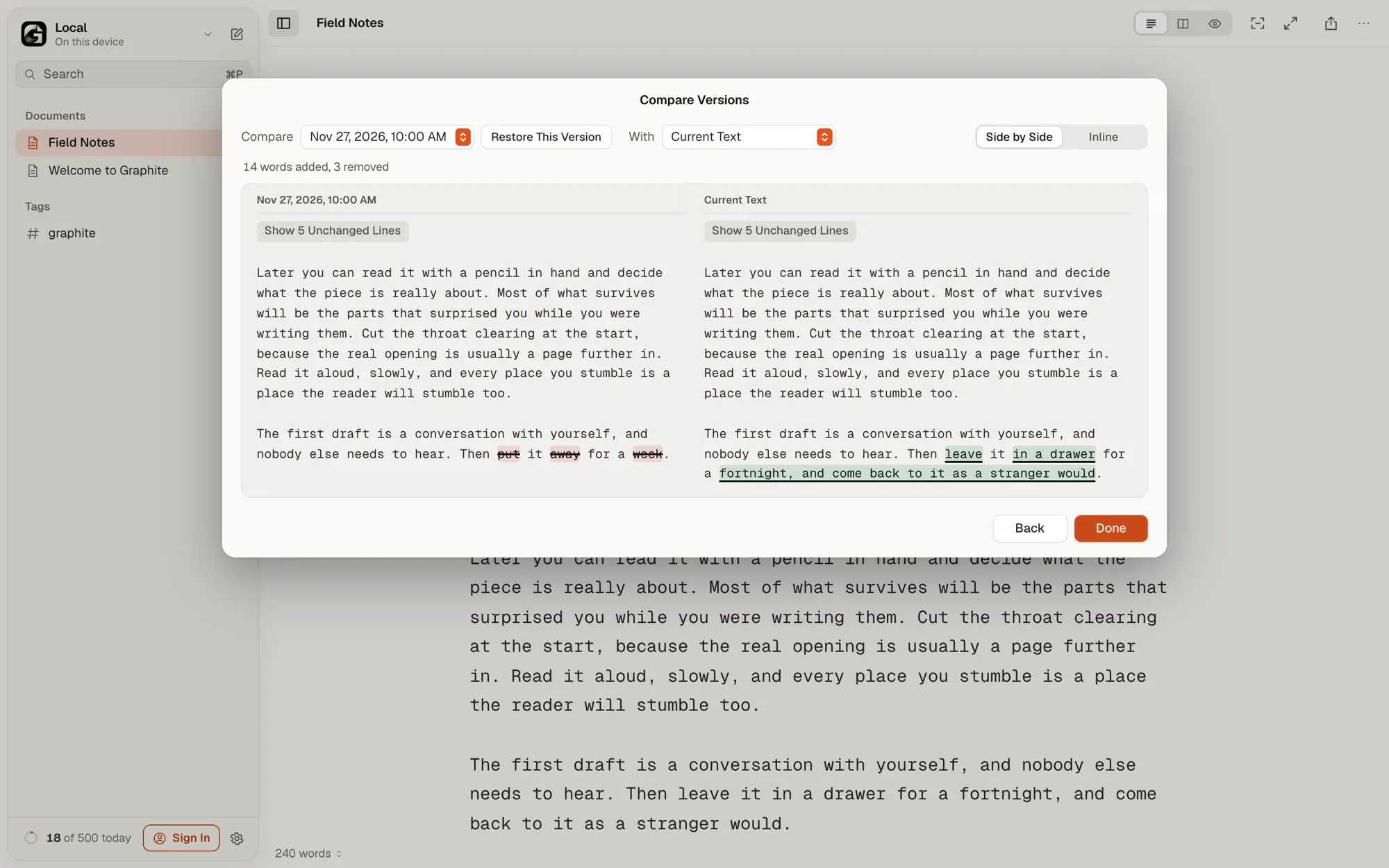
- Under Compare and With, choose the two versions to compare. With starts at Current Text, what’s in the editor now.
Graphite compares them word by word. A line at the top sums it up, such as “120 words added, 45 removed”, and added and removed words are marked in the text. Under Layout, choose Side by Side or Inline. Long stretches that didn’t change fold away, and a button such as Show 12 Unchanged Lines brings them back.
Choose Restore This Version next to either version to bring it back. Restoring saves your current text as a version first, so nothing is lost. The free version compares any of the latest 5 versions; Graphite Pro Pro reaches all of them. More about Version History.
Make a manuscript
- Put the chapters in one folder. See Folders, Tags and Search.
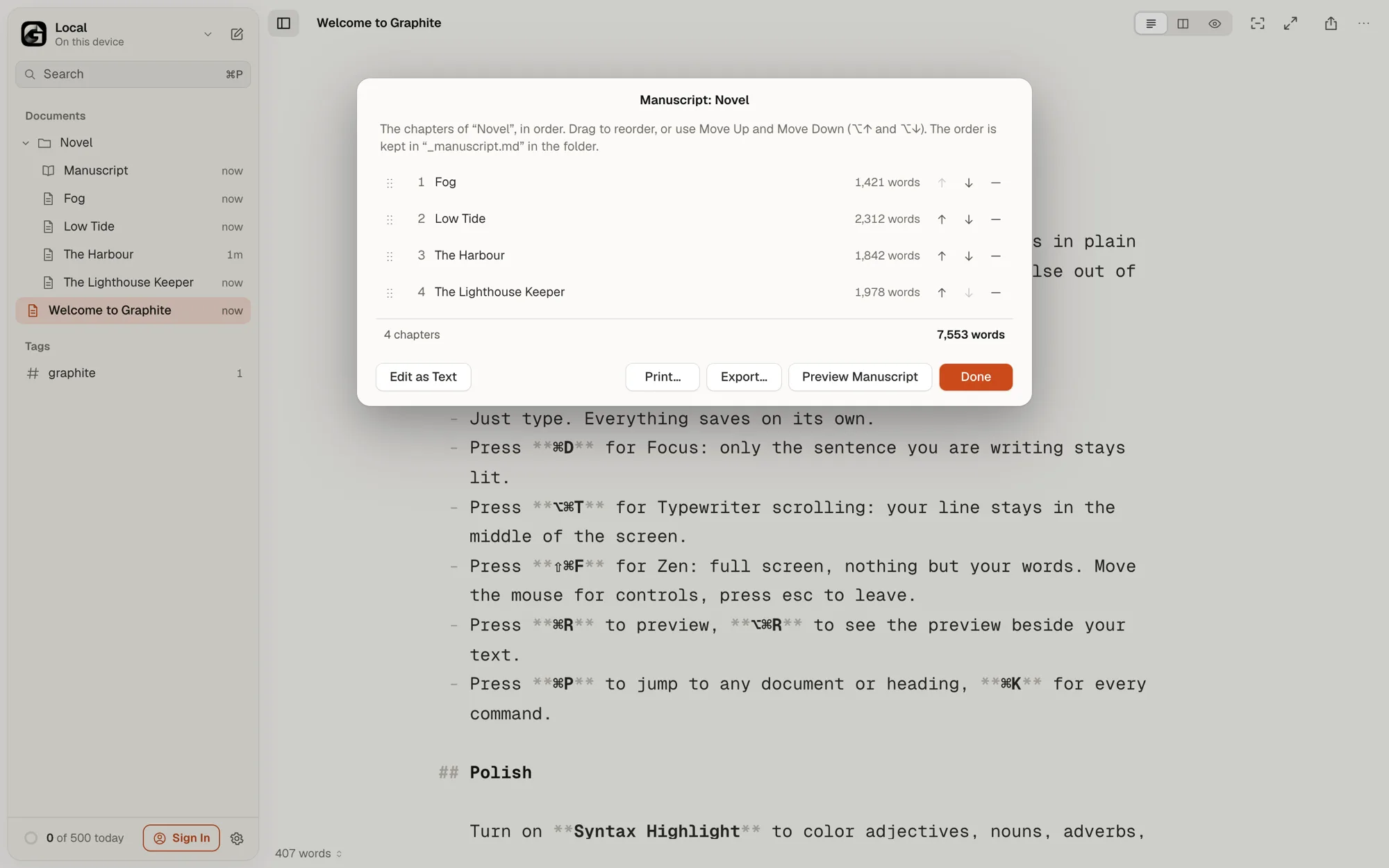
- In the sidebar, open the folder’s menu and choose Make Manuscript…. With a chapter open, you can also run it from the Command Palette.
- Graphite lists the folder’s documents by name, and adds a Manuscript item at the top of the folder.
Drag chapters into order, or use the Move Up and Move Down buttons, or ⌥↑ and ⌥↓. Each chapter shows its word count, and the total is at the bottom. Remove from Manuscript takes a chapter out of the list without deleting it. The folder’s other documents wait under Not in the Manuscript: choose Add to put one at the end.
Rename a chapter and the manuscript follows. Delete one and it leaves the list. To come back, click Manuscript in the sidebar, or choose Show Manuscript from the folder’s menu.
The order is a Markdown file
The order is kept in _manuscript.md in the folder: a heading and a numbered list of links. It syncs like any other document.
# Novel

1. [[The Harbour]]
2. [[Low Tide]]
3. [[The Crossing]]
Choose Edit as Text to open it in the editor. Notes and part headings between the items are kept; Graphite reads the order from the list.
Preview, print and export
- Preview Manuscript shows every chapter as one piece, in order. Free.
- Print… Pro starts each chapter on a new page.
- Export… saves the manuscript as one document: Web Page, in your preview style (Plain on the free version), PDF Pro or Word Document Pro, with a page break per chapter, or Markdown, with the chapters in one file.
Every chapter starts with its own heading. A chapter without one gets its name as the heading, and each chapter’s front matter is left out.
Private, as always: nothing new reaches our servers. The target lives in the document, the order in a file in your folder, and comparing happens on your device.