 Graphite
Guides / 13 of 13
Your Graphite Account
One free account: signing in, Graphite Pro, your profile, two-step sign-in, passkeys, devices and your data.
You never need an account to write in Graphite. A free Graphite account is how you sync with Google Drive, try Pro, buy Pro and keep it on every device.
Sign in, or sign up
There’s one way in, whether you’re new or coming back. The first time you sign in, your free account is created.
- Choose Sign In at the bottom of the sidebar, or Have an account? Sign In on the Welcome screen.
- Choose Continue with Google, or Continue with Email: type your email, choose Email Me a Code, and enter the 6-digit code we send you. The code works for 10 minutes.
- If you’ve added a passkey, your browser offers it as soon as you tap the email field. Choose it and you’re in, with nothing to type.
The first time, Graphite also asks whether to share usage data: which features you use, never your writing. In the EU, EEA, UK and Switzerland the box starts unticked, and nothing is shared unless you tick it. You can change it any time.
Google and Google Drive
Choosing Continue with Google on the Welcome screen signs you in and keeps your documents in your own Google Drive, in one step. If your documents are on this device or in a folder, signing in with Google asks once: Also sync your documents with Google Drive? Choose Sync with Google Drive and Graphite copies them into a “Graphite” folder in your Drive, keeping the copies on this device too. Nothing is copied unless you say yes. To stop, choose Stop Syncing with Google Drive… in Settings › Account › Sync or the library menu. You stay signed in, your documents stay in your Drive, and Graphite offers to copy any that aren’t on this device yet. Prefer not to use Drive? Untick it on Google’s screen, and you’ll still be signed in.
Sign out
Choose your photo or initials at the bottom of the sidebar, then Sign Out. It’s also near the bottom of Settings › Account, above Sign Out Everywhere. Graphite saves anything you’ve just typed first, and if it can’t yet, it keeps you signed in and tells you. Signing out of a Google Drive library leaves your documents safe in Drive: sign in again to reach them.
The Pro trial
Accounts created by 13 November 2026 get every Pro feature for 30 days from sign-up. There’s no card and no key, and it’s once per person. Sign in on another device and the same days follow you. Settings › Account shows how many are left, and Graphite reminds you in the last three days. When the trial ends, Pro features pause, nothing is charged, and your documents and Pro settings stay as they are. More about the trial.
Graphite Pro on your account
Pro belongs to your account, so there are no license keys: your email is the key. Buy on the pricing page or with Buy Pro… in Settings › Graphite Pro, paying through Lemon Squeezy with the email you sign in with. You don’t need to sign in first. Sign in with that email on any device, up to 5 at once, and Pro is there. If you signed in with Google using an address that isn’t a Gmail or work Google account, Settings › Graphite Pro shows that a purchase is waiting: choose Confirm Email and enter the code we send, so a purchase only ever goes to the person who gets that email.
Your profile
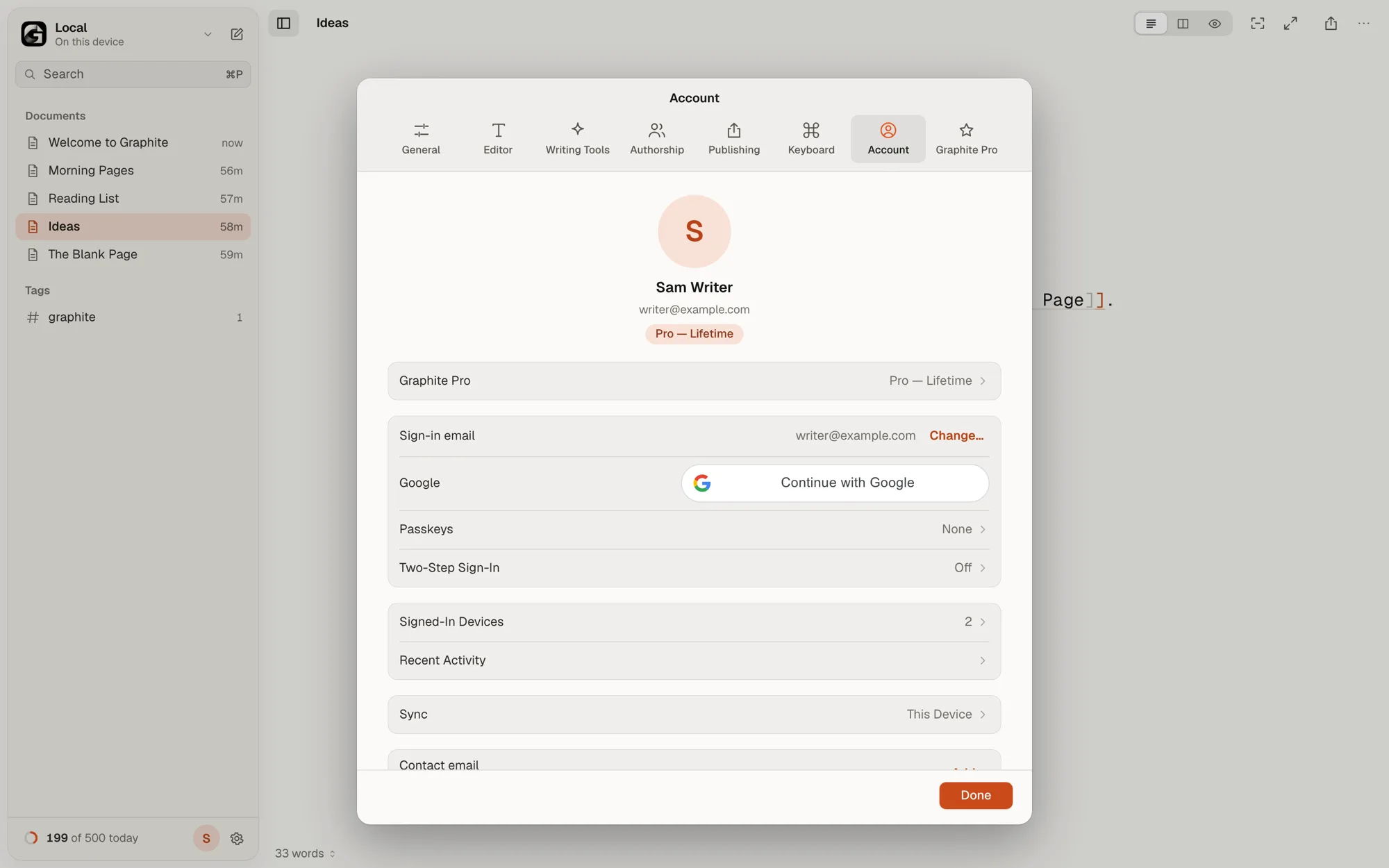
At the top of Settings › Account, choose Add Name to add your name. Click your photo or initials there for a menu: Choose Photo… picks a picture, and Remove Photo takes it away. If you signed up with Google, your Google photo is copied once at sign-up. Graphite resizes a photo you choose in your browser, which also removes hidden details like location. Only you see your name and photo.
Two-step sign-in
Two-step sign-in asks for a code from an authenticator app every time you sign in, so your email alone isn’t enough to get into your account.
- In Settings › Account, open Two-Step Sign-In and turn the switch on.
- Scan the QR code with an authenticator app, or choose Can’t scan? Enter this key.
- Type the code from the app and choose Confirm.
- Graphite shows ten backup codes, once. Choose Save as File…, keep them somewhere safe, then choose I’ve Saved Them.
Each backup code works once, in place of the app’s code. New Backup Codes… replaces them all. Turning two-step sign-in on signs out your other devices. After five wrong codes, two-step sign-in pauses for a while, longer each time it happens again.
Passkeys
A passkey signs you in with your fingerprint, face or device PIN instead of a code, and it can’t be phished. In Settings › Account › Passkeys, choose Add Passkey… and follow your browser. You can rename or remove passkeys there too. A passkey also works as the second step when two-step sign-in is on: choose Use a Passkey. Sign Out Everywhere keeps your passkeys and lists them, so you can remove any you don’t recognise.
Devices and activity
Signed-In Devices, in Settings › Account, lists every browser signed in to your account, such as “Chrome on macOS”, with this device first. Choose Sign Out next to any of them, or Sign Out All Other Devices. Recent Activity shows sign-ins and changes to your account from the last 90 days. If you see something you didn’t do, sign out the other devices, turn on two-step sign-in and write to us.
For your safety, a few changes need a recent sign-in: changing your sign-in email, two-step sign-in and backup codes, linking or unlinking Google, signing out other devices, and deleting the account. If it’s been more than 10 minutes, Graphite asks you to choose Sign In Again first.
If you lose your phone
Use a backup code. If you’ve lost those too, choose Lost your phone and backup codes? when Graphite asks for your code. For your safety, two-step sign-in then turns off after 7 days, and we email you when it starts and when it ends. If it wasn’t you, simply signing in with your code cancels it.
Contact and news
Account emails go to your sign-in address. Next to Contact email you can add a second address with Add… and confirm it with a code, and turn on Email me Graphite news (a few times a year) if you’d like news. News is off until you turn it on, and every news email has an unsubscribe link. Security emails arrive whatever you choose.
Your data, your call
- What it keeps: your email address, when you signed up, your trial, the profile and contact email you add, your devices, your two-step settings, 90 days of activity and, if you share it, which features you use each day. No documents, no IP address, no password, no cookies.
- Download My Data saves everything the account holds as a file, including your photo.
- Sign Out, in the menu under your photo or initials at the bottom of the sidebar or near the bottom of Settings › Account, signs out this browser. Anything not yet saved is saved first, and if that can’t happen yet, Graphite keeps you signed in and tells you. Sign Out Everywhere signs out every device. A device you don’t use for 14 days is signed out on its own.
- Delete Account… removes the account and everything stored with it straight away. Your documents aren’t affected: they were never on our servers.
The privacy policy lists every detail. That’s the last guide. If you have questions, the Support page has answers, or write to aryan@aroice.in.