 Graphite
Guides / 4 of 13
Folders, Tags and Search
Choose where your documents live, then sort them and find them again.
Choose a library
A library is where your documents are stored. Switch between them from the menu at the top of the sidebar.
- In this browser: documents are kept in your browser’s own storage. Private, offline, and works everywhere, including Safari and phones.
- A folder on your disk (Chrome, Edge and Arc): choose Open Folder… and Graphite reads and writes the
.md,.markdownand.txtfiles inside it, so other apps can use them too. If a file changes in another app, Graphite reloads it. After you restart the browser, click Reconnect to give it permission again. - Google Drive: sign in with Google and your documents are saved as Markdown in a “Graphite” folder in your Drive. Every edit is kept on your device first and synced shortly after, so you can keep writing offline. Your writing streak, settings and favourites sync too. Graphite can only see files it created itself.
Settings › Account › Sync shows which Google account is connected.
Folders, favorites and tags
- Create a folder with New Folder… from the Command Palette or the + next to Documents. Folders can live inside folders, and can be renamed or deleted from their menu.
- To file a document, choose Move To… from the document’s menu in the sidebar or from its title.
- Hover a document and click the star to add it to Favorites at the top of the sidebar.
- Any
#tagin your text appears under Tags. Click one to see only those documents.
Find anything ⌘P
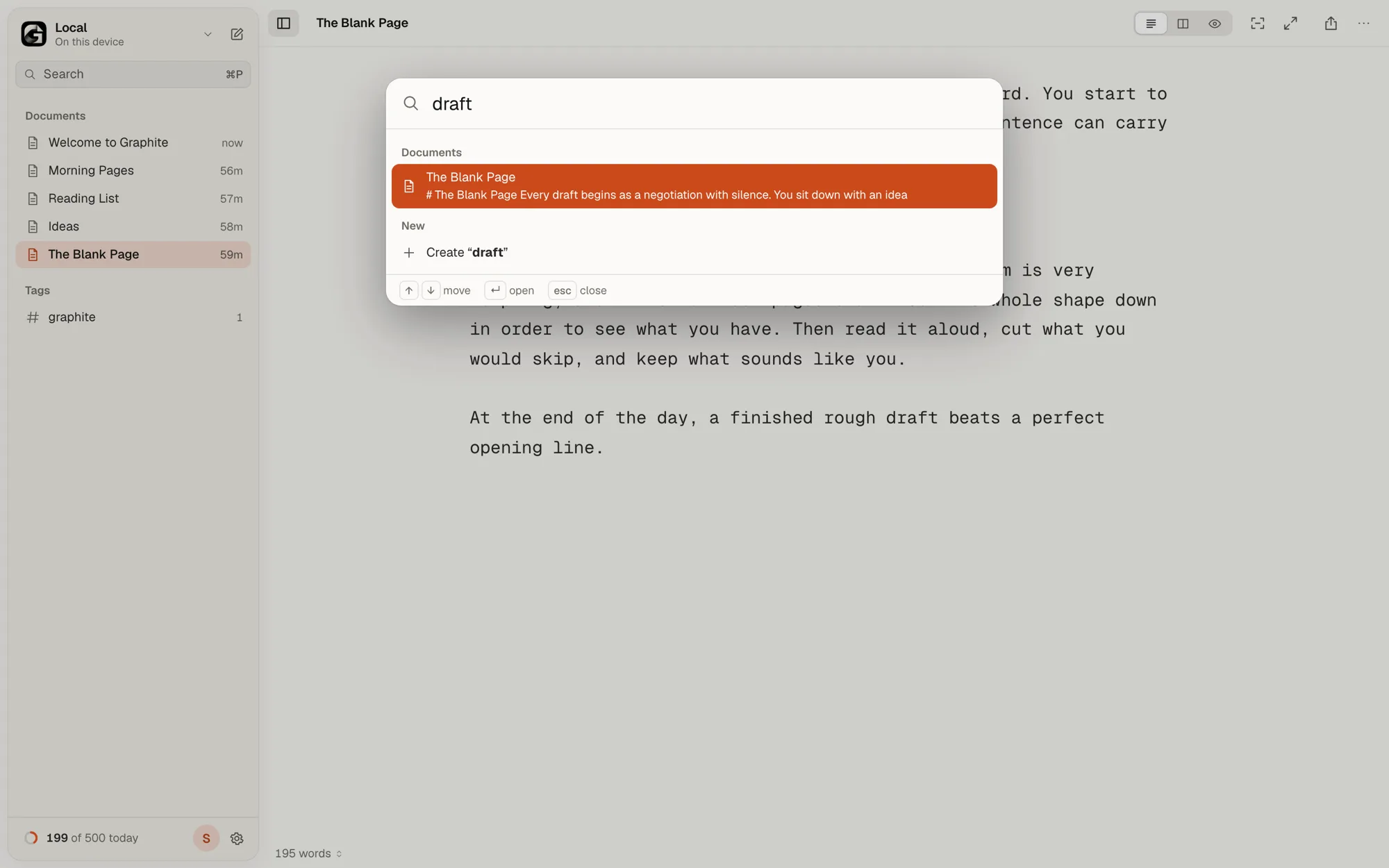
Quick Search looks through titles, headings and the full text of every document. With nothing typed, it lists the headings of the current document (a handy outline) and your recent documents. No match? Choose Create to start a new document with that title.
Select several at once
⌘-click to select several documents, or Shift-click to select a range, then favorite, move, duplicate or delete them together. Deleting shows an Undo button for a few seconds.
To connect documents to each other, see Link Your Documents. For Recently Deleted, Version History and backups, see Keep Your Work Safe.