 Graphite
Guides / 9 of 13
Preview, Export and Share
Preview styles, export formats, blog front matter and share links.
Preview ⌘R
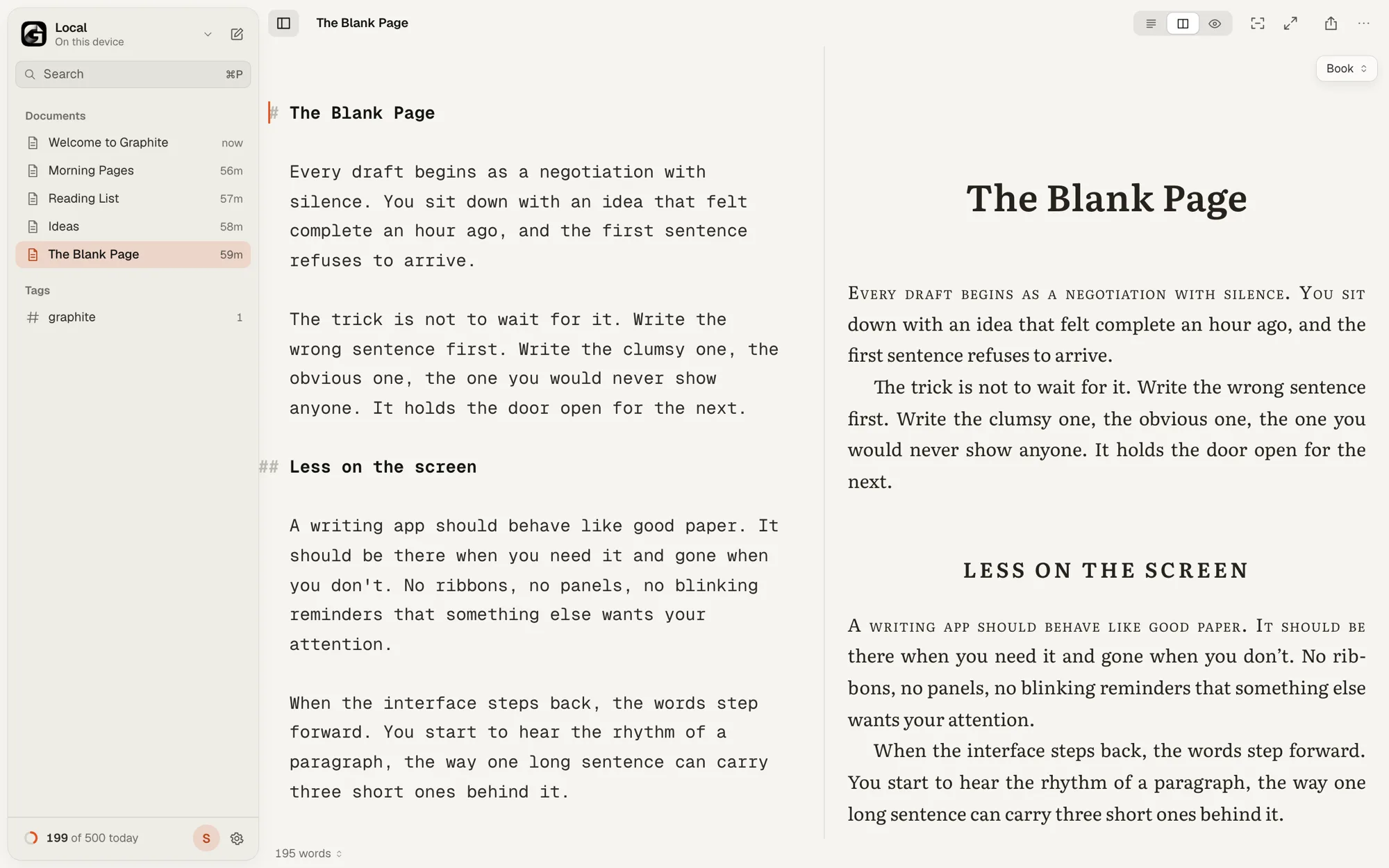
Preview shows your document formatted. Press ⌥⌘R to see it side by side with your text as you write (on wider screens). Choose a style from the Preview style menu above the preview, or in Settings › Publishing:
- Plain: a simple sans-serif page that prints cleanly. Free.
- Essay Pro: a serif reading measure with generous rhythm.
- Modern Pro: clean Geist type with orange accents.
- Book Pro: Literata set like a printed page, justified, with a small-caps opening.
- Newsletter Pro: bold sans headlines and a wide measure, for posts and updates.
- Academic Pro: Source Serif with numbered sections, for papers and reports.
- Typewriter Pro: a double-spaced, monospaced manuscript for drafts and scripts.
Export ⇧⌘E
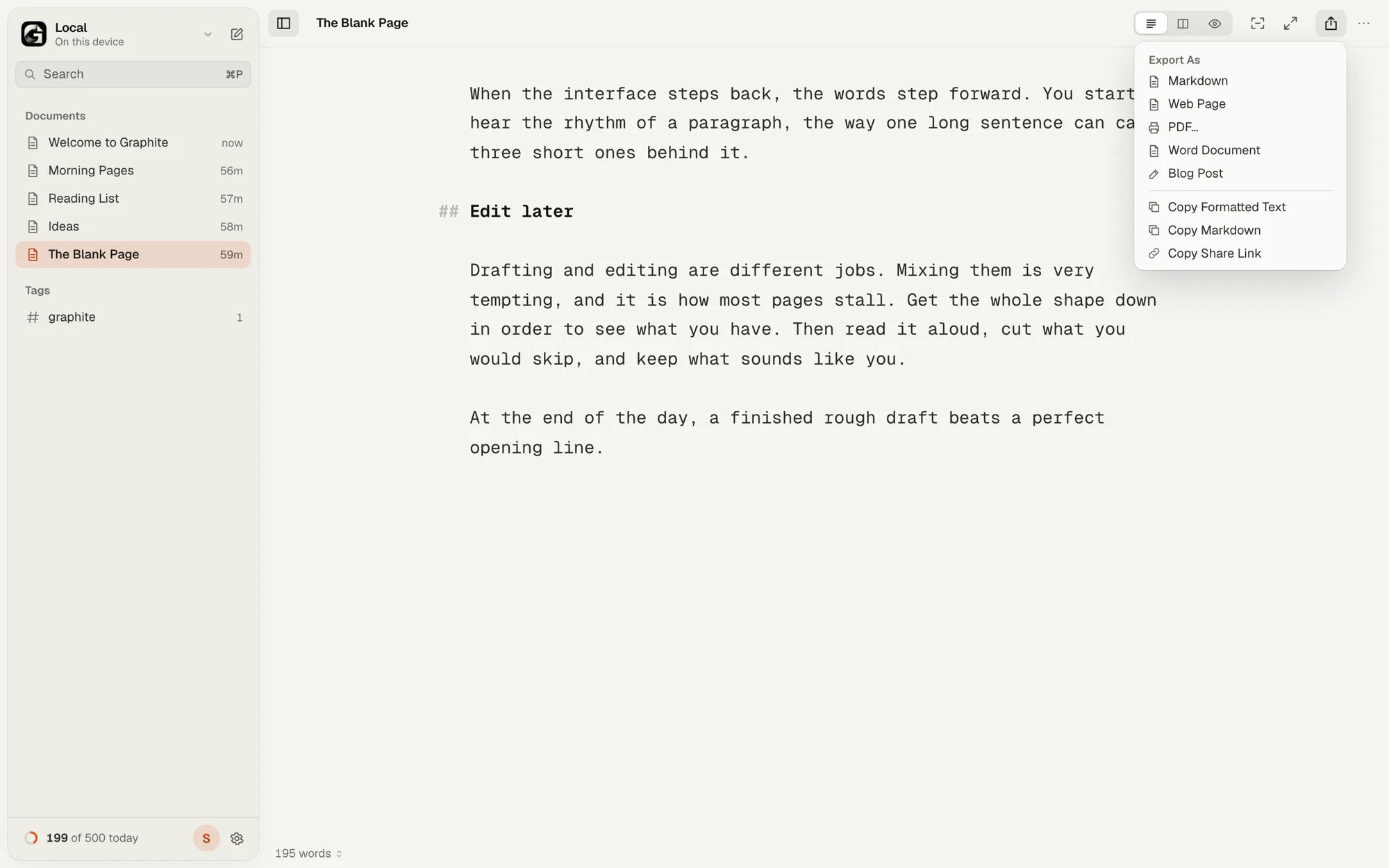
| Format | What you get |
|---|---|
| Markdown | A .md file, without authorship data. |
| Web Page | A single .html file in your preview style (Plain on the free version). |
| PDF Pro | Opens the print dialog. Choose “Save as PDF”. Pages are numbered from the second one, in Chrome, Edge and Safari. |
| Word Document Pro | A .docx with headings, lists, links, quotes, code and tables. |
| Blog Post Pro | Markdown with front matter, named after the post’s slug. |
You can also Copy Formatted Text to paste straight into an email, document or CMS, or Copy Markdown. Both are free.
When you print or save a PDF, every style keeps headings with the text that follows them and never splits code, quotes, tables or images across pages. Exported web pages print the same way. Links between documents become plain text in web pages, PDFs, Word files and share links.
Blog front matter Pro
Blog Post export moves your first heading into front matter at the top of the file. Edit the template under Settings › Publishing. These placeholders are filled in for you:
| Placeholder | Becomes |
|---|---|
{{title}} | Your first heading, or the first line |
{{slug}} | The title in lowercase-with-hyphens |
{{date}} | Today, as YYYY-MM-DD |
{{description}} | Your first paragraph, about 160 characters |
{{tags}} | Your #tags as a quoted list |
{{readingTime}} | Minutes to read |
{{words}} | Word count |
Share links
Copy Share Link compresses the whole document into the link itself. Nothing is uploaded: the text lives after the #, a part of the address browsers never send to a server.
- Anyone with the link can read the document, so send it only to people you trust. A link can’t be taken back once it’s sent.
- The reader sees a read-only page and can save a copy into their own library.
- Long documents make long links. Graphite warns you when a link might be too long for some apps.
- Authorship marks aren’t included.
Images from the web
Preview and shared links hold back images hosted on other websites, so those sites can’t see who’s reading. Click Load Images to show them, or turn on Load images from other websites in Settings › Publishing.