 Graphite
Guides / 1 of 13
First Steps
A short walk around the window: library, editor, toolbar and status bar.
Graphite has three parts: the library on the left, the editor in the middle, and a thin toolbar and status bar that fade away while you type. Move the mouse and they come back.
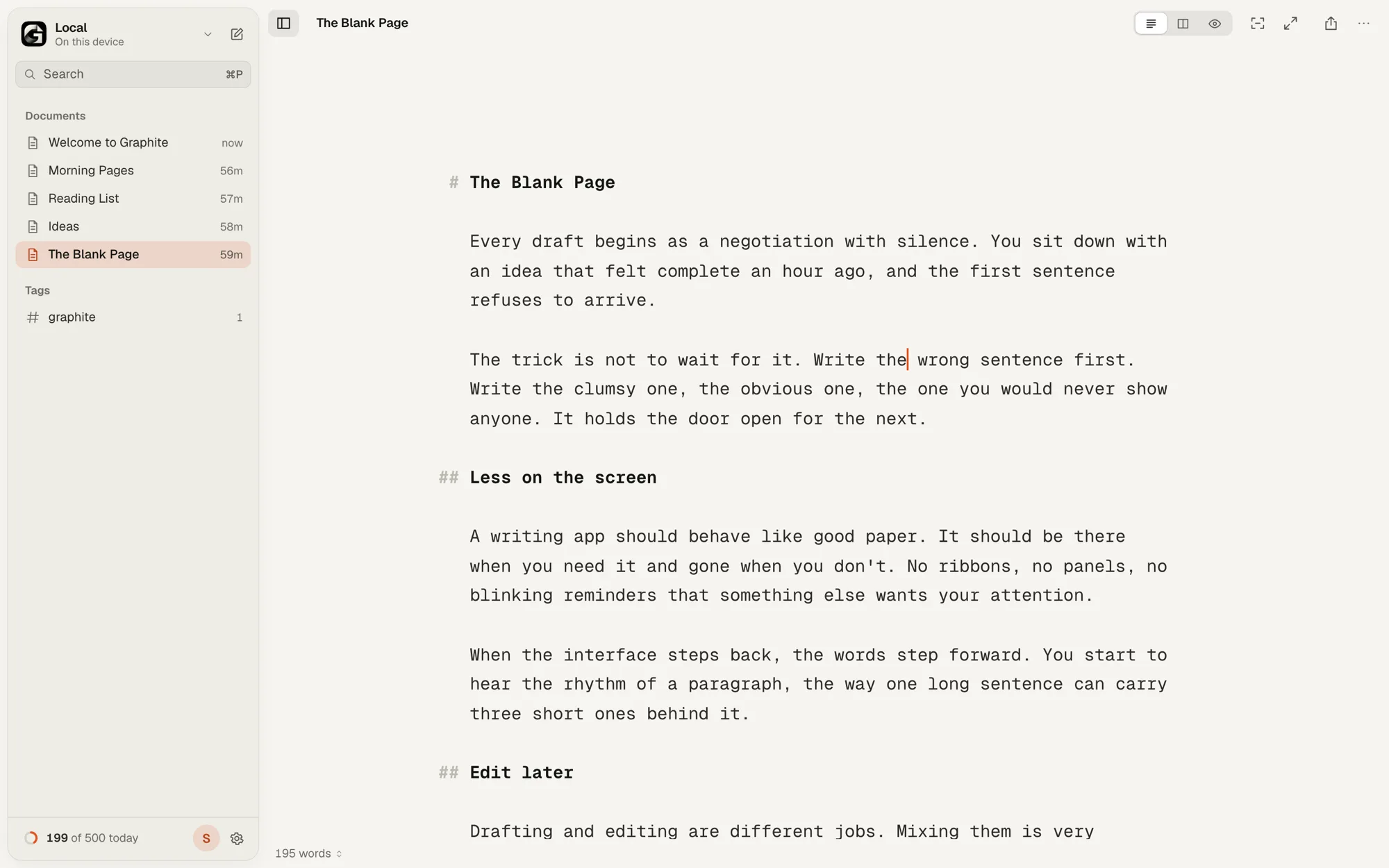
Where your writing lives
The first time you open Graphite, it asks where your writing should live:
- Continue with Google: signs you in to your free Graphite account, and your documents, writing streak, settings and favourites sync through your own Google Drive.
- Use on This Device: private and offline, with no account.
- Use a Folder on Your Computer (Chrome, Edge and Arc): Markdown files in a folder you pick.
You can switch at any time from the library menu at the top of the sidebar, or in Settings › Account › Sync. More about libraries.
A Graphite account, if you want one
You never need an account to write. If you’d like one, choose Sign In at the bottom of the sidebar and continue with Google, or type your email and enter the 6-digit code we send you. Until 13 November 2026, new accounts get every Pro feature free for 30 days. Settings › Account shows what Graphite keeps, lets you turn off usage data, download your data, or delete the account. What an account stores.
Just type
There’s no Save button to remember. Graphite saves a moment after you stop typing, and again whenever you switch tabs or close the window. If a save ever fails, a Not Saved badge appears next to the title, a Try Again button appears, and a recovery copy is kept on your device. How Graphite keeps your work safe.
A new document starts as “Untitled”. Once you write a second line, Graphite names it after your first heading or first line.
The toolbar
- Library button (⌘\) shows or hides the sidebar.
- Document title: click it to rename, duplicate, move to a folder, see Version History, export, print or delete.
- Editor, Side by Side, Preview: three ways to look at the same text.
- Focus and Zen, for distraction-free writing.
- Share and Export, and a More menu with the writing tools.
The status bar
At the bottom you’ll find a counter: click it to switch between words, characters and reading time. Select some text and it shows how many of the words are selected. Your progress toward today’s goal sits at the bottom of the sidebar, or in the status bar when the sidebar is hidden.
Find any command
Press ⌘K for the Command Palette: every command in Graphite, searchable. Press ⌘P to jump to any document or heading. ⌘/ shows every keyboard shortcut, and ⌘, opens Settings.
On Windows, Linux and ChromeOS, use Ctrl wherever you see ⌘ and Alt for ⌥.
Install it like an app
Graphite works offline once it has loaded, and installing it gives it its own window and icon.
- Chrome, Edge and Arc on desktop: click the install icon in the address bar, or choose Install Graphite… from the More menu.
- Safari on Mac: File › Add to Dock.
- iPhone and iPad: in Safari, tap Share › Add to Home Screen.
- Android: in Chrome, open the menu and choose Install app.
When a new version is ready, Graphite tells you and waits for you to click Update.
Capture an idea fast
- New Draft opens a blank page, ready to type, with nothing over it. Find it in the Command Palette, or in the menu of Graphite’s app icon once it’s installed (right-click it, or touch and hold).
- Share into Graphite: once it’s installed, Graphite can appear in your device’s Share menu, on Android for example. Share text or a link from another app, and Graphite asks Save Shared Text? with a name and a preview. Choose Save as New Document, or Discard. Nothing is saved until you say so.