 Graphite
Guides / 7 of 13
Revise With Fresh Eyes
Syntax Highlight and Style Check point out what to look at, and leave the changes to you.
Drafting and revising are different jobs. When it’s time to revise, Graphite’s two writing tools help you see the text more clearly. Neither one changes your words.
Graphite Pro. Syntax Highlight and Style Check are part of Graphite Pro. Find and Replace is free. See what’s in Pro.
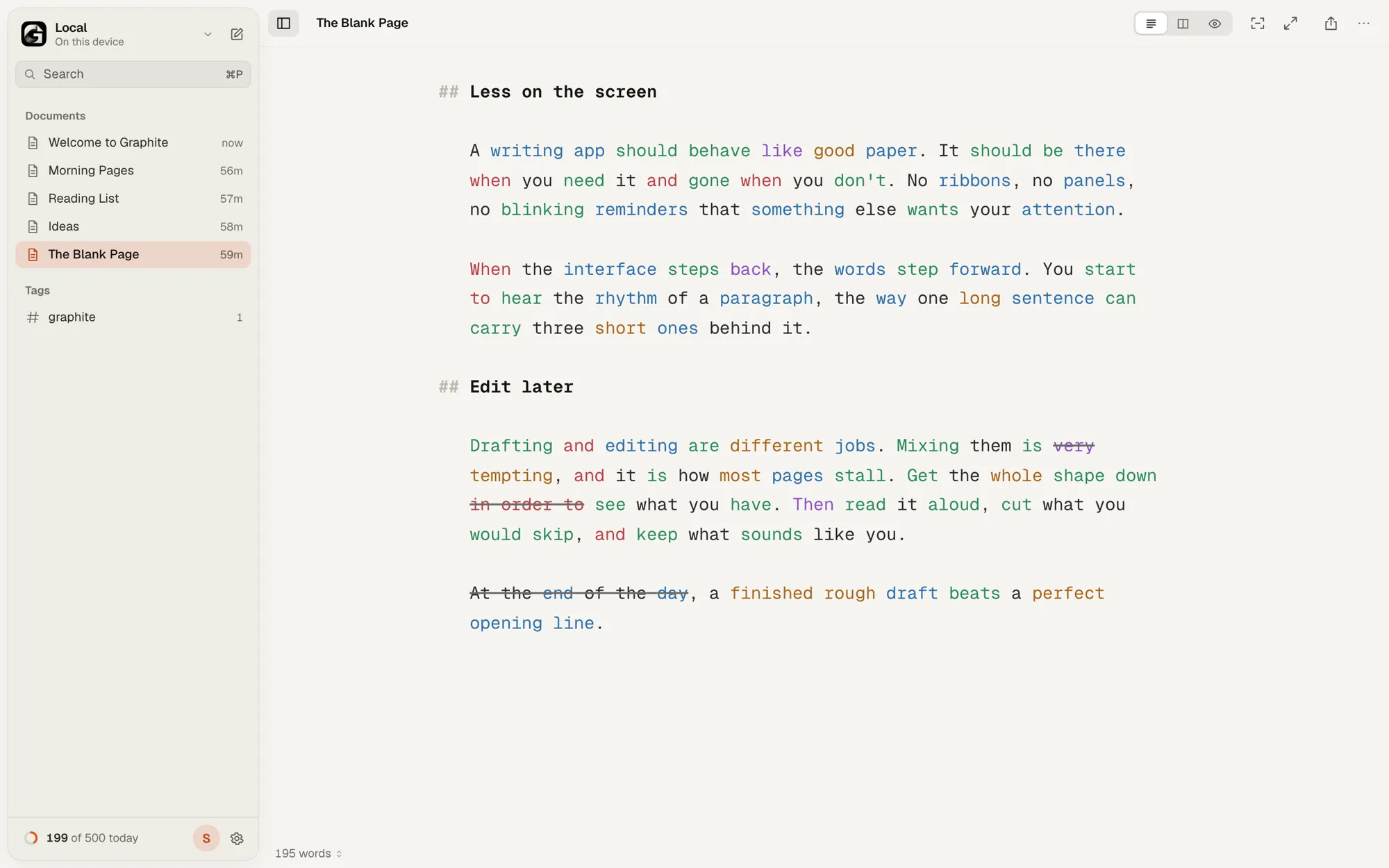
Syntax Highlight ⌥⌘H Pro
Colors parts of speech so you can see how a sentence is built:
| Part of speech | Color |
|---|---|
| Adjectives | Amber |
| Nouns | Blue |
| Adverbs | Purple |
| Verbs | Green |
| Conjunctions | Red |
Use it to spot a paragraph thick with adjectives and adverbs, or a run of sentences strung together with “and”. You can turn each color on or off in Settings › Writing Tools.
Style Check ⌥⌘C Pro
Marks common weak spots:
- Filler, struck through in gray: words like very, really, just, basically and phrases like in order to.
- Clichés, struck through in orange: think outside the box, game changer, deep dive.
- Redundancies, struck through in purple: end result, past history, revert back.
- Repeated words, with a red wavy underline: “the the”.
Hover a mark to see why it was flagged. Sometimes the “weak” word is exactly right: Option-click (Alt-click on Windows) the mark to ignore that phrase in this document. Each category can be switched off in Settings › Writing Tools.
Good to know: both tools run entirely on your device and currently understand English. Your text is never sent anywhere to be analysed.
Find and Replace ⌘F
Opens a search bar at the top of the editor. ⌘G jumps to the next match. Select three or more characters and Graphite quietly highlights every other place they appear.